คู่มือแบบภาพVisual guide

ใช้ ClickEye ใน 5 นาทีClickEye in 5 minutes

ดูภาพ แล้วกดตามหมายเลข — หมุดสีส้มบนภาพตรงกับคำอธิบายข้าง ๆLook at the picture and follow the numbers — each orange pin matches the note beside it.

12
1

เข้าสู่ระบบSign in

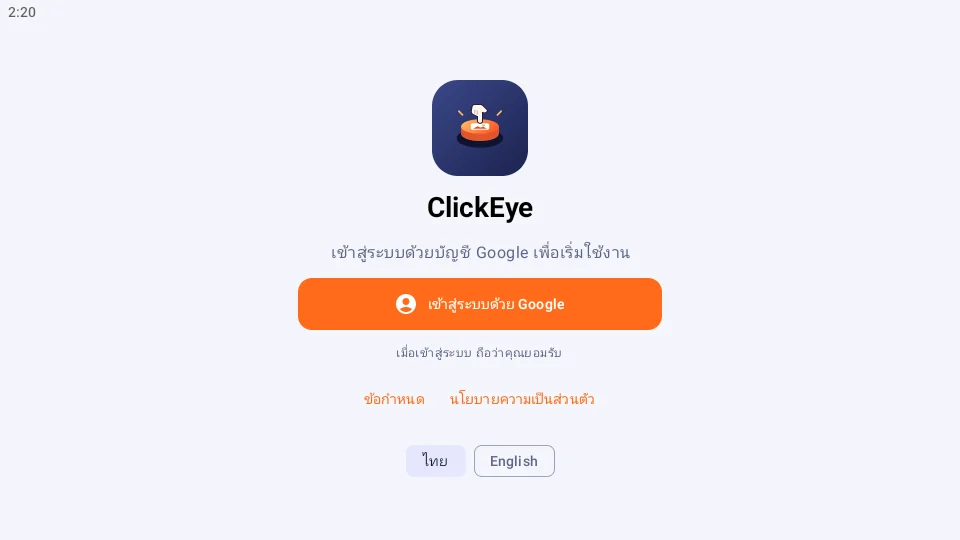
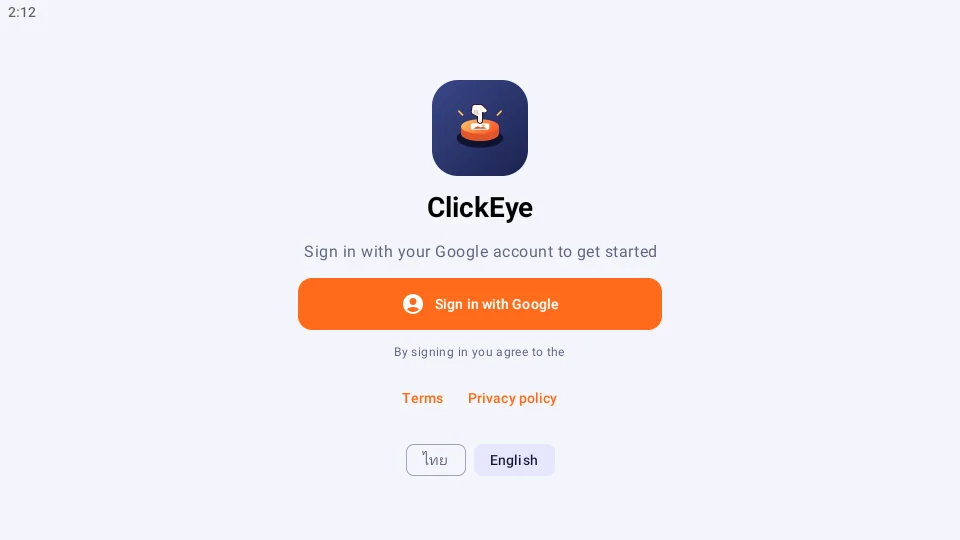
เปิดแอปครั้งแรก เข้าสู่ระบบด้วยบัญชี GoogleOn first launch, sign in with your Google account.

  1. 1เข้าสู่ระบบด้วย GoogleSign in with Googleเลือกบัญชี Google ที่ต้องการPick your Google account
  2. 2เลือกภาษาLanguageไทย หรือ อังกฤษ เปลี่ยนทีหลังได้ในตั้งค่าThai or English, changeable later in Settings
1234
2

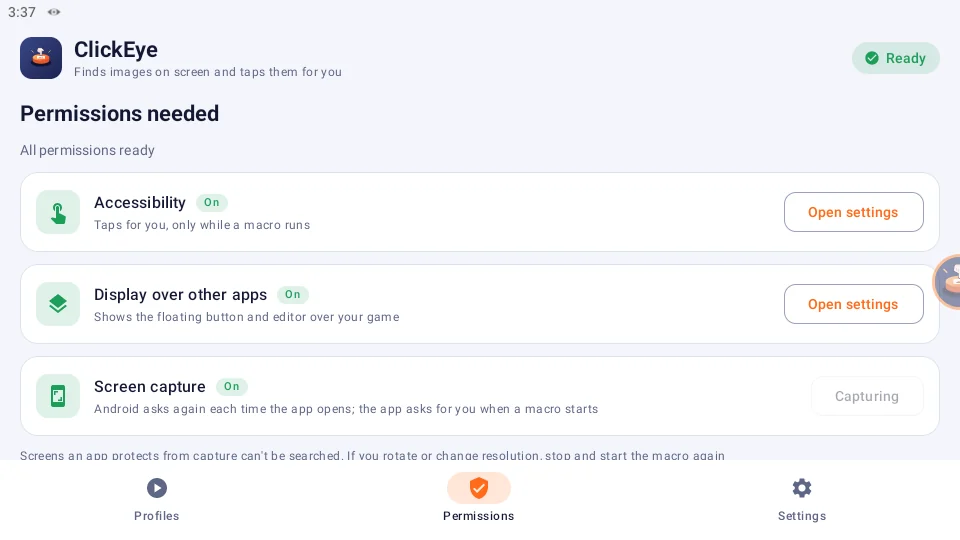
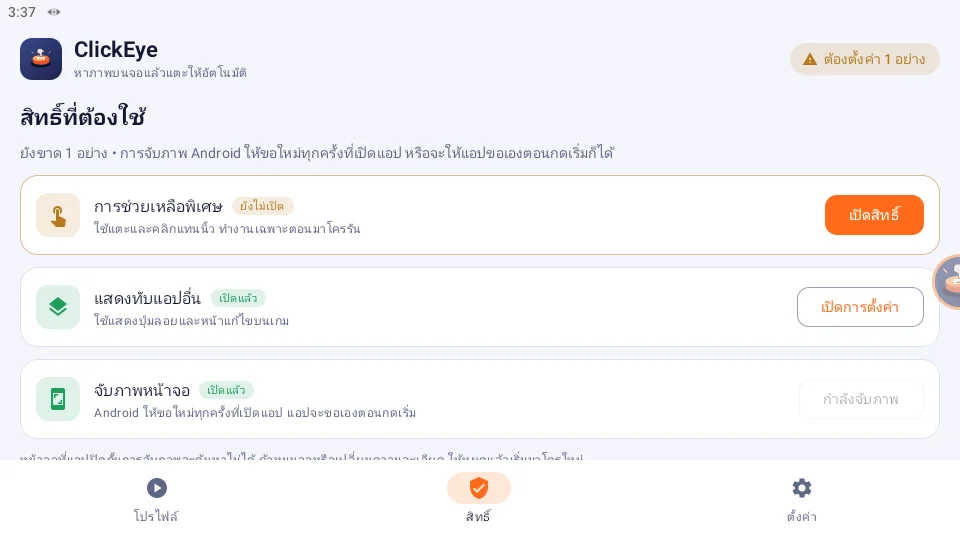
เปิดสิทธิ์ 3 อย่างTurn on 3 permissions

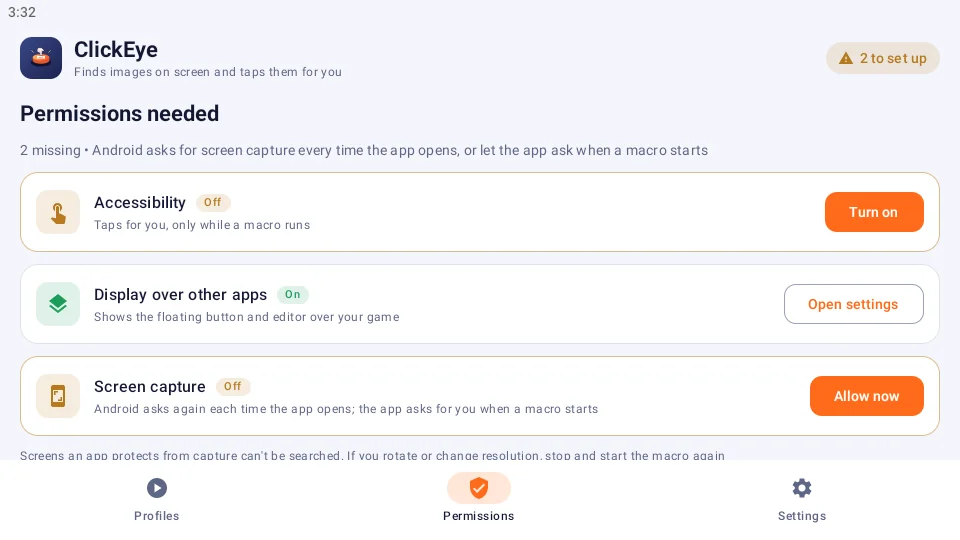
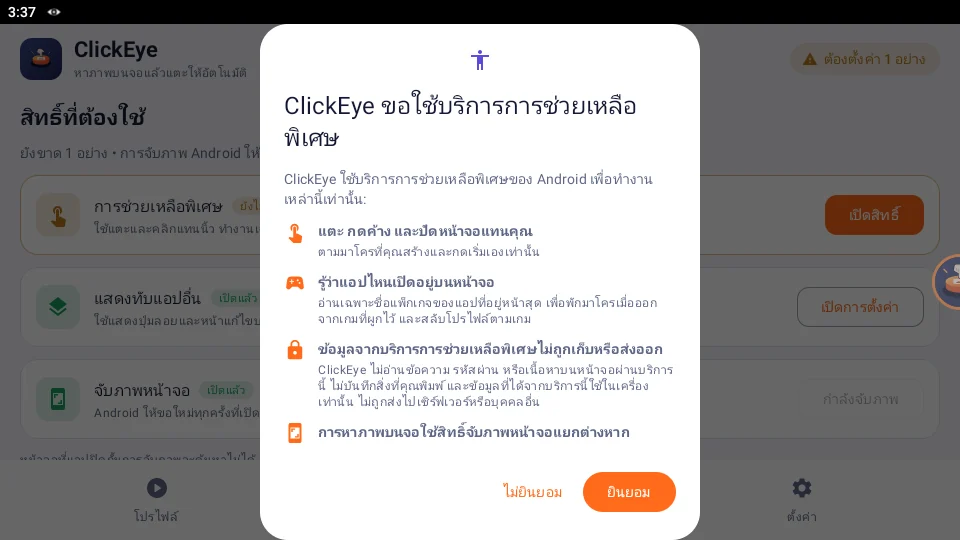
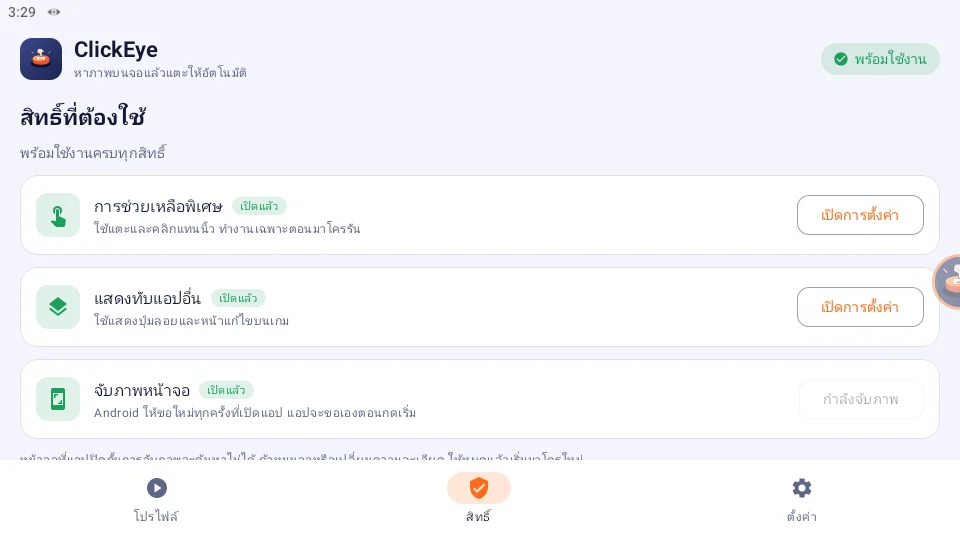
แท็บ สิทธิ์ → กดปุ่มสีส้มทีละแถวจนป้ายด้านบนขึ้น "พร้อมใช้งาน"Permissions tab → tap each orange button until the top pill says "Ready".

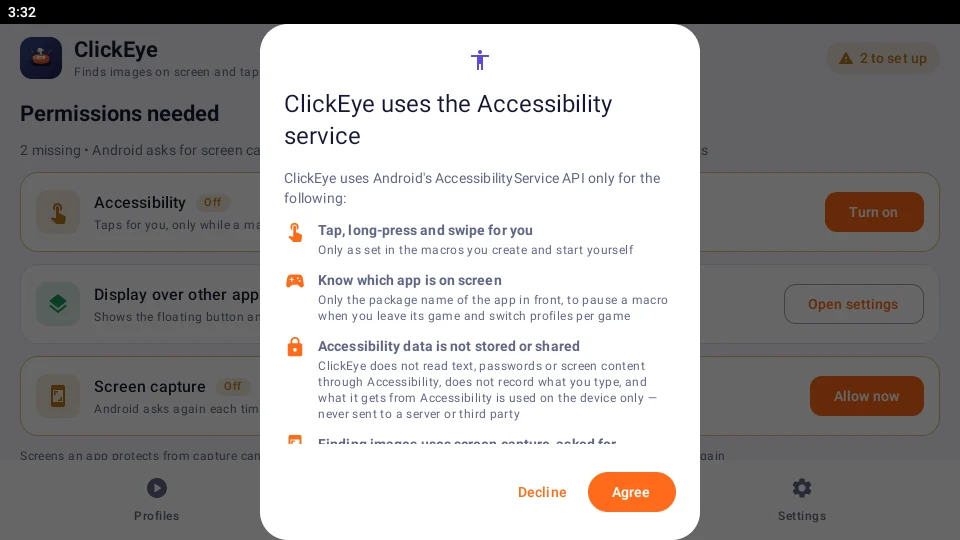
  1. 1การช่วยเหลือพิเศษAccessibilityใช้แตะหน้าจอแทนคุณ อ่านคำอธิบายแล้วกด "ยินยอม"Taps for you — read the notice, tap "Agree"
  2. 2แสดงทับแอปอื่นDisplay over appsให้ปุ่มลอยขึ้นบนเกมได้Lets the floating button sit on top of games
  3. 3จับภาพหน้าจอScreen captureAndroid ถามทุกครั้งที่เริ่ม เลือกแชร์ทั้งหน้าจอAndroid asks each time; share the entire screen
  4. 4ป้ายสถานะStatus pillบอกว่ายังขาดกี่อย่างShows how many are missing

กด ยินยอม แล้วเปิด ClickEye ในหน้าตั้งค่า AndroidTap Agree, then turn on ClickEye in Android settings

ครบแล้วทุกแถวเป็นสีเขียวAll green when you're done

1234
3

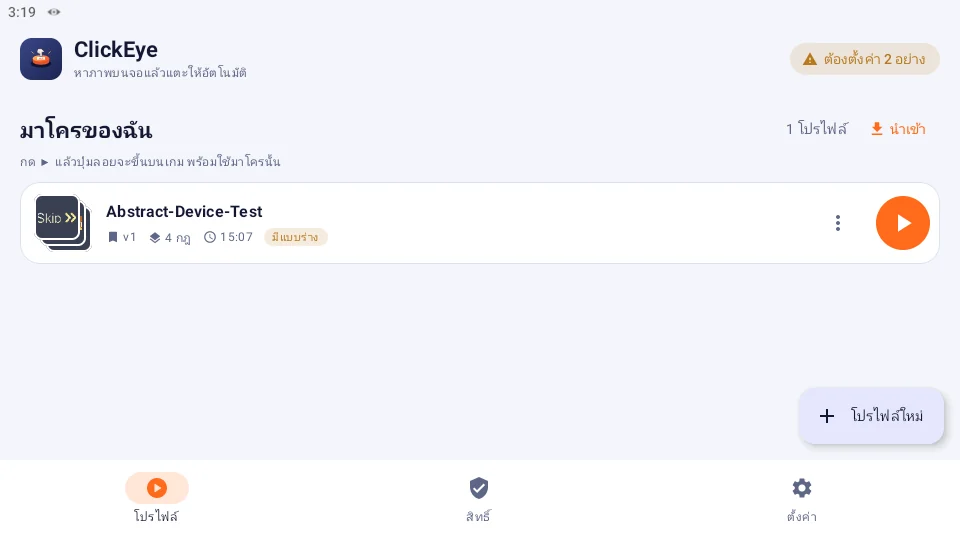
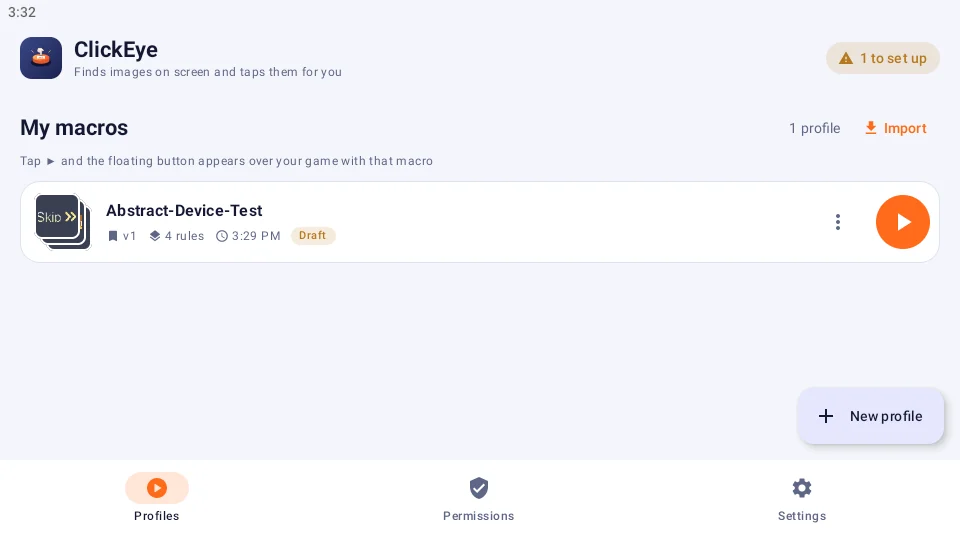
สร้างมาโครCreate a macro

1 มาโคร = ชุดกฎสำหรับงานหนึ่ง (เช่น 1 เกม)One macro = one set of rules (e.g. one game).

  1. 1มาโครใหม่New macroตั้งชื่อแล้วเริ่มสร้างName it and start
  2. 2▶ เปิดปุ่มลอย▶ Floating buttonปุ่มลอยจะขึ้นบนจอพร้อมมาโครนี้Shows the floating button with this macro
  3. 3เมนู ⋮⋮ menuแก้ไข เปลี่ยนชื่อ ผูกเกม ทำสำเนา ส่งออก ลบEdit, rename, bind game, duplicate, export, delete
  4. 4นำเข้าImportเปิดไฟล์ .clickeye จากเครื่องอื่นOpen a .clickeye file from another device
12345
4

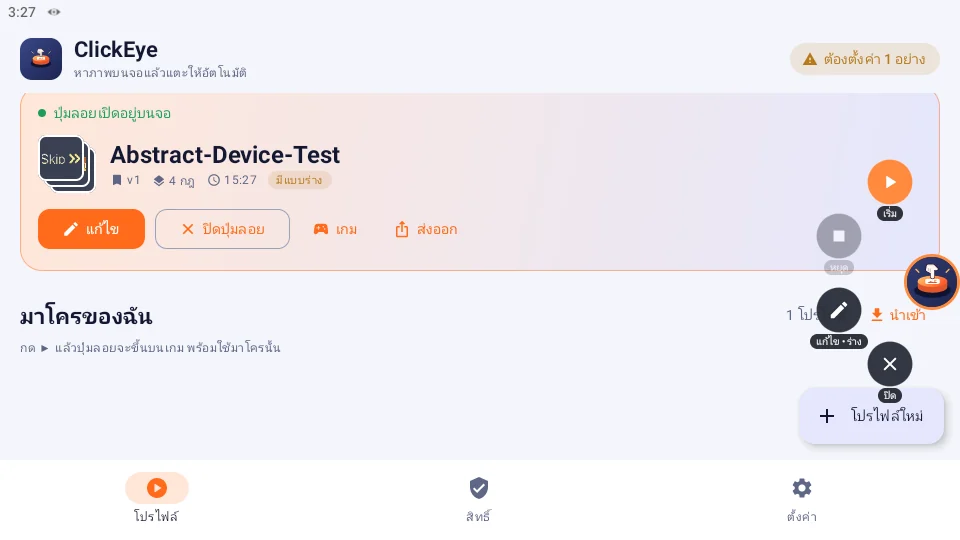
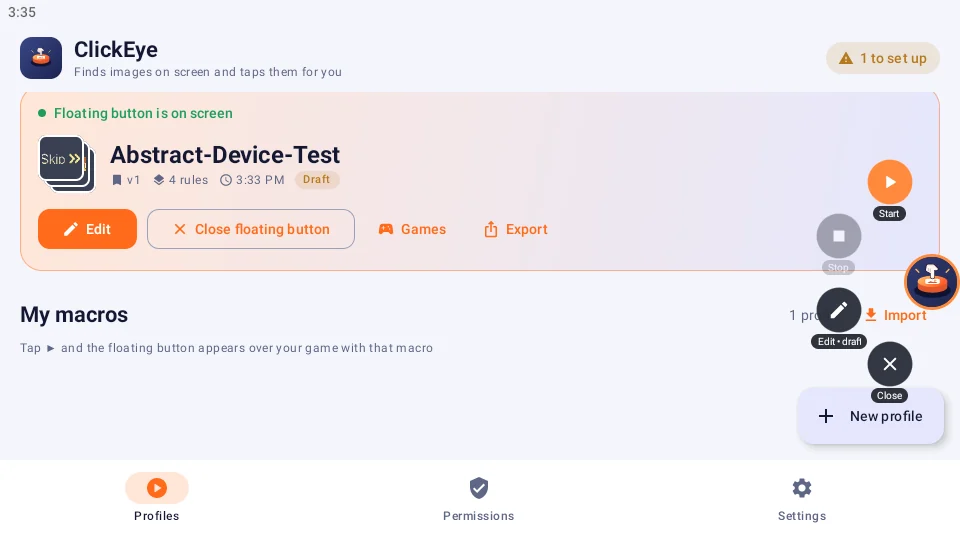
ปุ่มลอยThe floating button

แตะปุ่มลอยเพื่อเปิดเมนู ลากเพื่อย้าย ลากไปที่ ✕ ด้านล่างเพื่อปิดTap it for the menu, drag to move, drag onto the ✕ to close.

  1. 1ปุ่มลอยFloating buttonสีวงรอบบอกสถานะThe ring colour shows the state
  2. 2เริ่ม / พักStart / Pauseเริ่มหาภาพและแตะStart finding and tapping
  3. 3หยุดStopหยุดรอบนี้Stop the run
  4. 4แก้ไขEditเปิดตัวแก้มาโครOpen the editor
  5. 5ปิดCloseปิดปุ่มลอยClose the floating button
ส้ม = พร้อมOrange = readyเขียว = กำลังทำงานGreen = runningเหลือง = พักAmber = pausedแดง = ต้องตั้งค่าRed = needs setup
123456
5

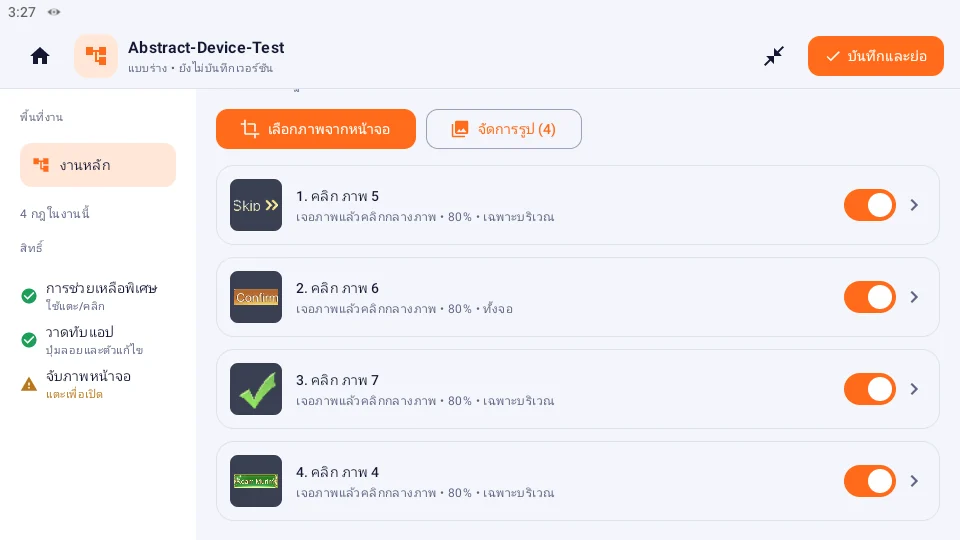
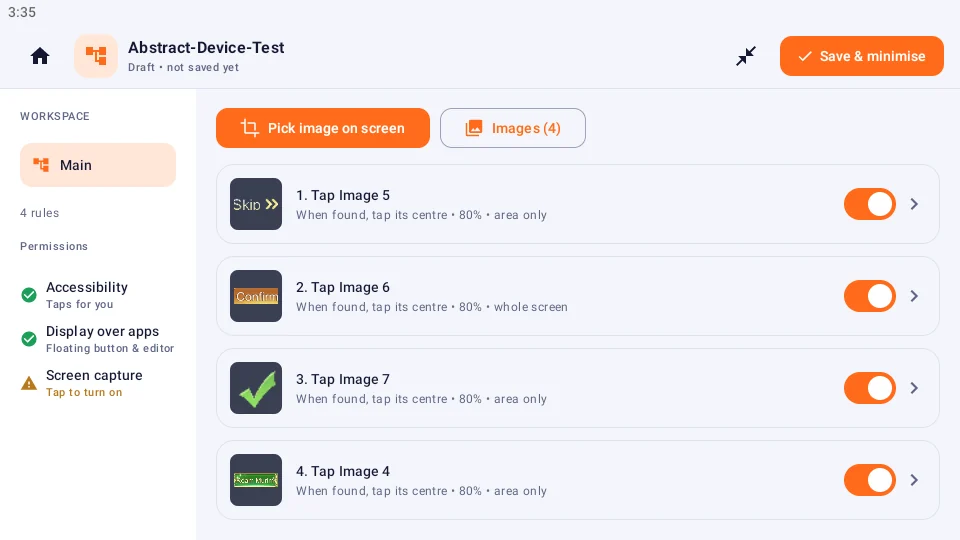
ตัวแก้มาโครThe editor

รายการกฎ: เจอภาพไหน → แตะที่ไหน ทำงานพร้อมกันทุกกฎที่เปิดอยู่Your rules: when an image appears → where to tap. Every enabled rule runs.

  1. 1เลือกภาพจากหน้าจอPick image on screenครอปปุ่มใหม่ = กฎใหม่Crop a new button = a new rule
  2. 2จัดการรูปImagesรูปที่เคยครอปไว้ ใช้ซ้ำหรือลบReuse or delete saved crops
  3. 3การ์ดกฎRule cardแตะเพื่อเปิดตั้งค่ากฎTap to open its settings
  4. 4สวิตช์Switchเปิด/ปิดกฎนี้Turn this rule on/off
  5. 5บันทึกและย่อSave & minimiseบันทึกเวอร์ชันแล้วกลับเป็นปุ่มลอยSave a version, back to the button
  6. 6กลับหน้ามาโครBack to macros
1234
6

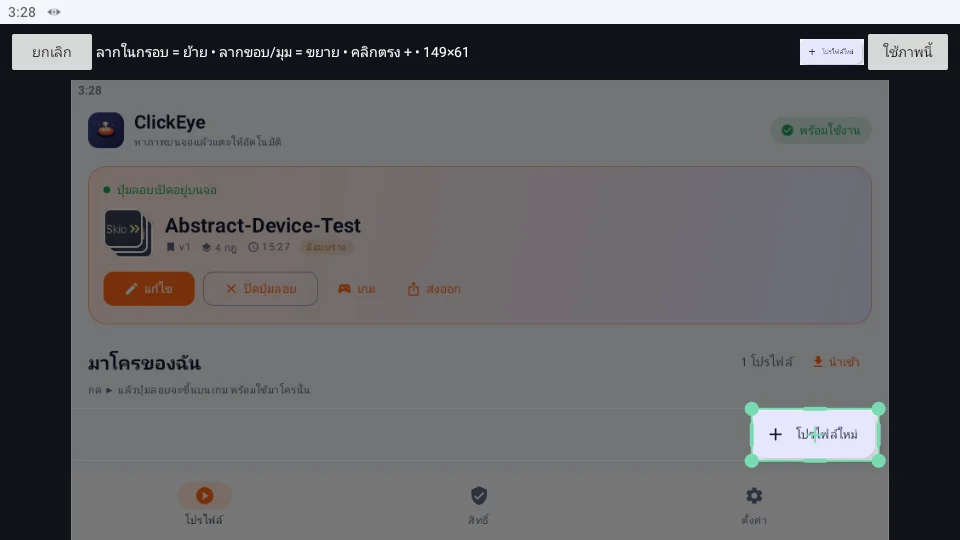
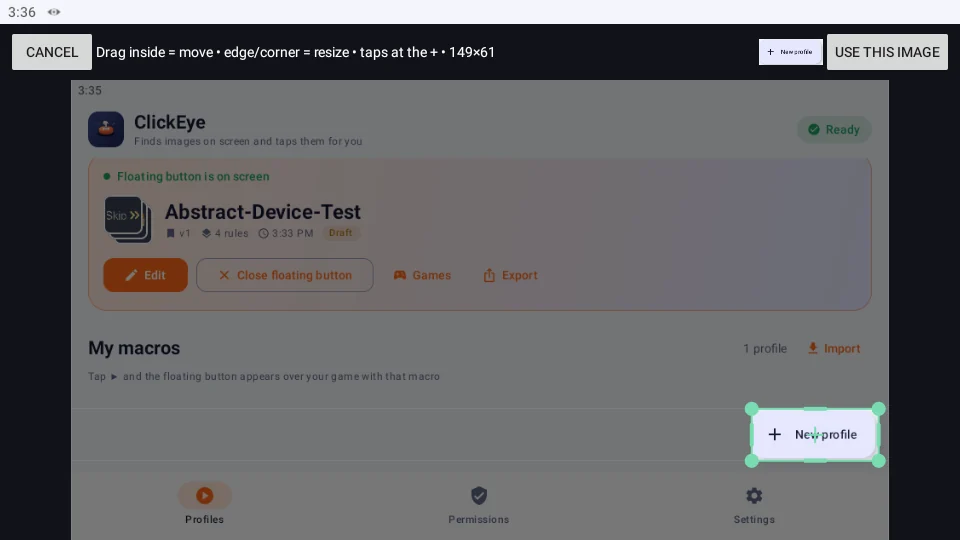
ครอปปุ่มที่อยากให้กดCrop the button

ลากกรอบรอบปุ่มให้พอดี ยิ่งติดพื้นหลังน้อย ยิ่งเจอเร็วและแม่นBox the button tightly — less background, faster and more accurate.

  1. 1ลากในกรอบ = ย้ายDrag inside = moveแตะข้างนอกเฉย ๆ กรอบไม่หายA stray tap keeps the box
  2. 2ลากขอบ/มุม = ขยายDrag edge/corner = resizeปรับทีละด้านหรือทั้งมุมOne side or a whole corner
  3. 3ตัวอย่างPreviewภาพที่จะใช้ค้นหาWhat will be searched for
  4. 4ใช้ภาพนี้Use this imageได้กฎใหม่ "เจอแล้วแตะกลางภาพ"Creates "when found, tap its centre"
12345
7

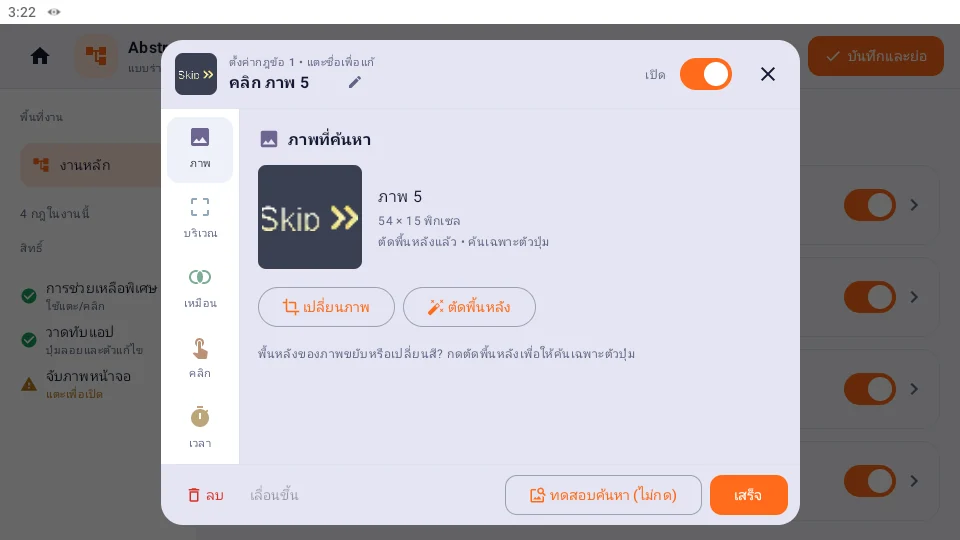
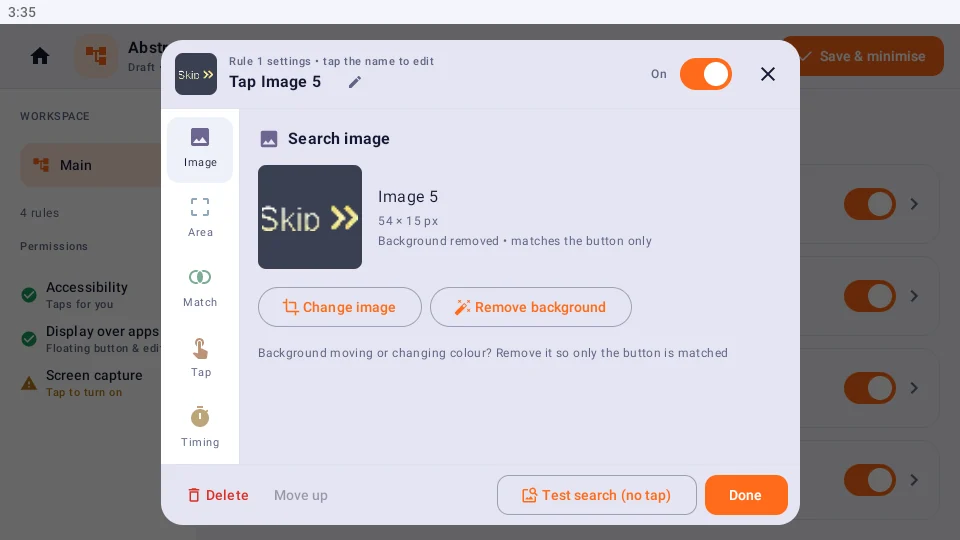
ตั้งค่ากฎRule settings

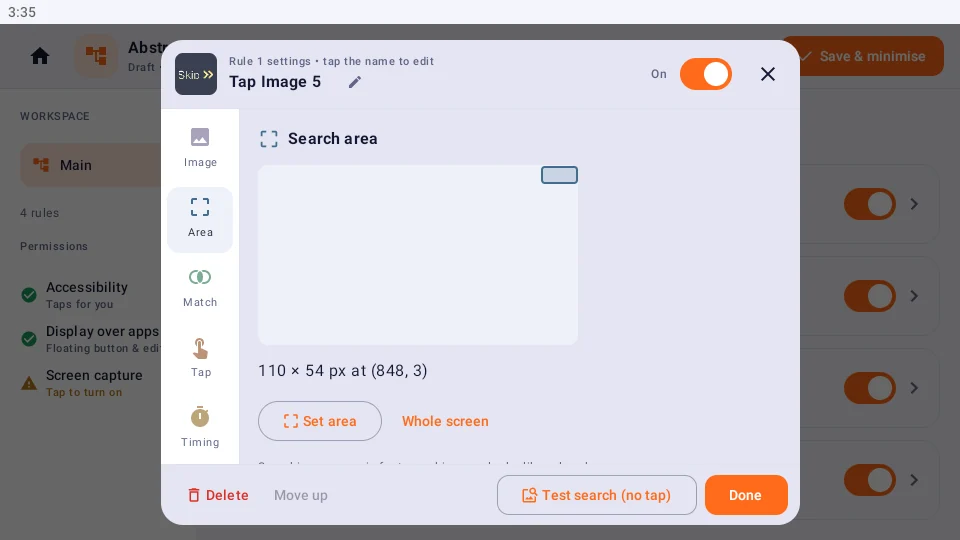
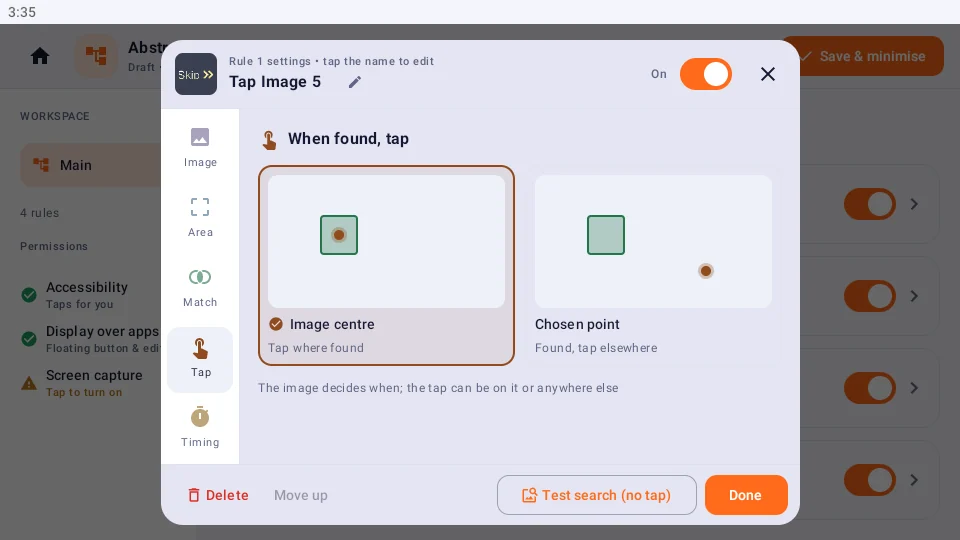
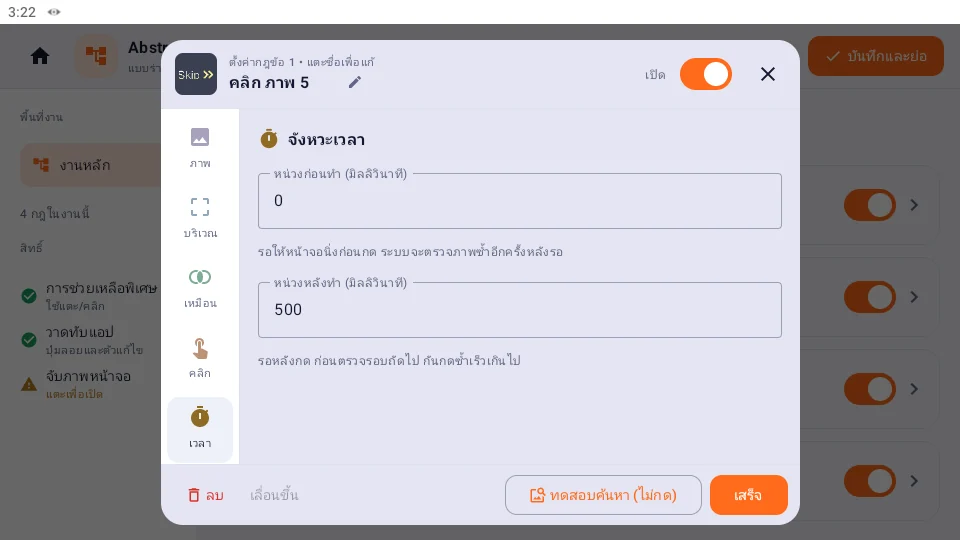
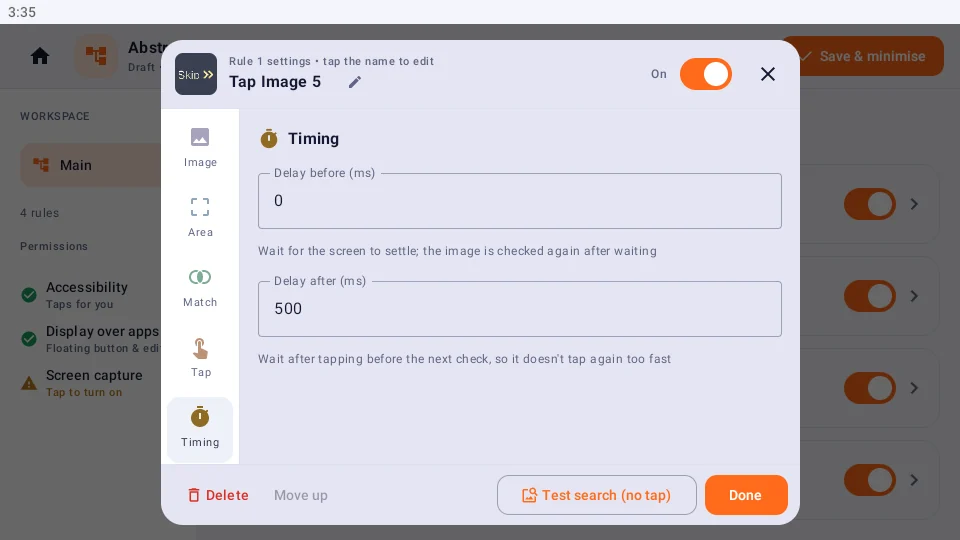
แถบไอคอนด้านซ้ายมี 5 หัวข้อ แตะชื่อด้านบนเพื่อเปลี่ยนชื่อกฎFive topics on the icon rail; tap the name at the top to rename.

  1. 1แถบหัวข้อTopicsภาพ · บริเวณ · เหมือน · คลิก · เวลาImage · Area · Match · Tap · Timing
  2. 2ชื่อกฎRule nameแตะเพื่อแก้Tap to edit
  3. 3เปิด/ปิดกฎOn/off
  4. 4ตัดพื้นหลังRemove backgroundให้ค้นเฉพาะตัวปุ่มMatch the button only
  5. 5ทดสอบค้นหาTest searchดูผลโดยยังไม่แตะจริงSee the result without tapping

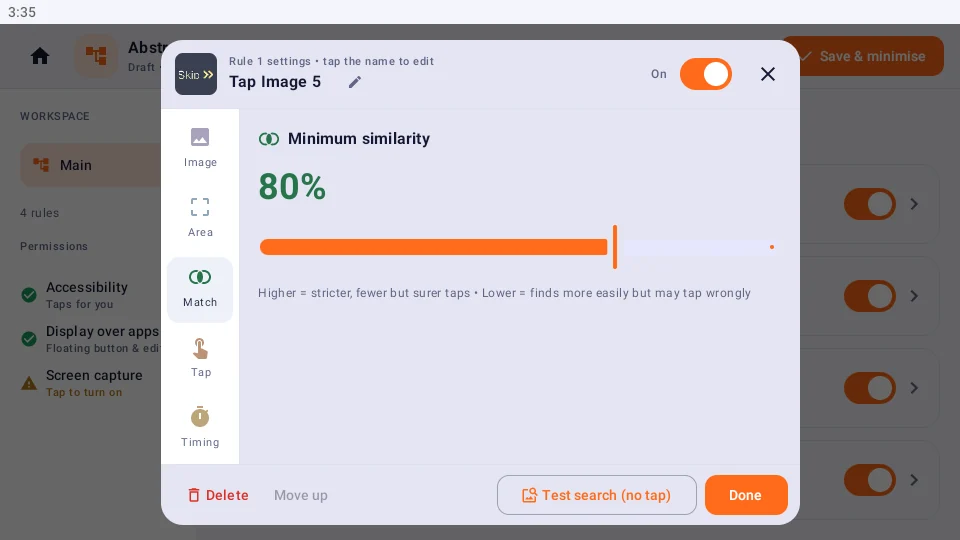
บริเวณ — ค้นทั้งจอ หรือเฉพาะส่วนที่ปุ่มขึ้นArea — whole screen or just where the button appears

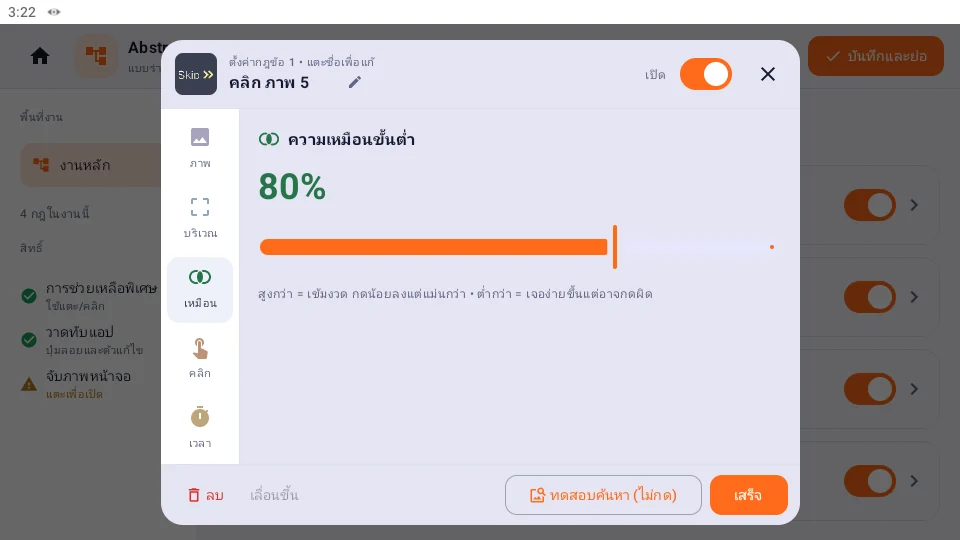
เหมือน — เกณฑ์ 80% สูง = เข้มงวด ต่ำ = เจอง่ายMatch — 80% threshold: higher is stricter, lower finds more

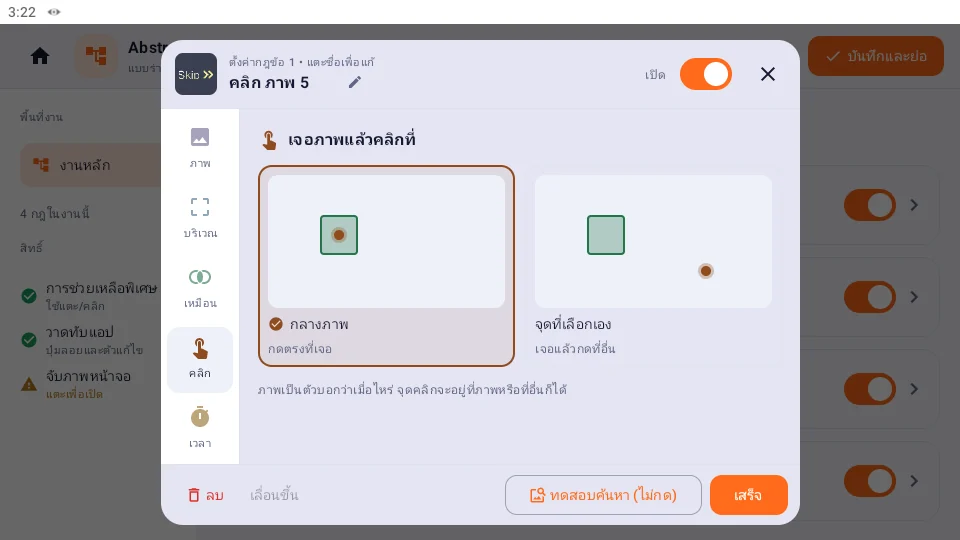
คลิก — แตะกลางภาพ หรือจุดอื่นที่เลือกTap — the image's centre or a point you pick

เวลา — หน่วงก่อน/หลังแตะ (มิลลิวินาที)Timing — delay before/after the tap (ms)

1234
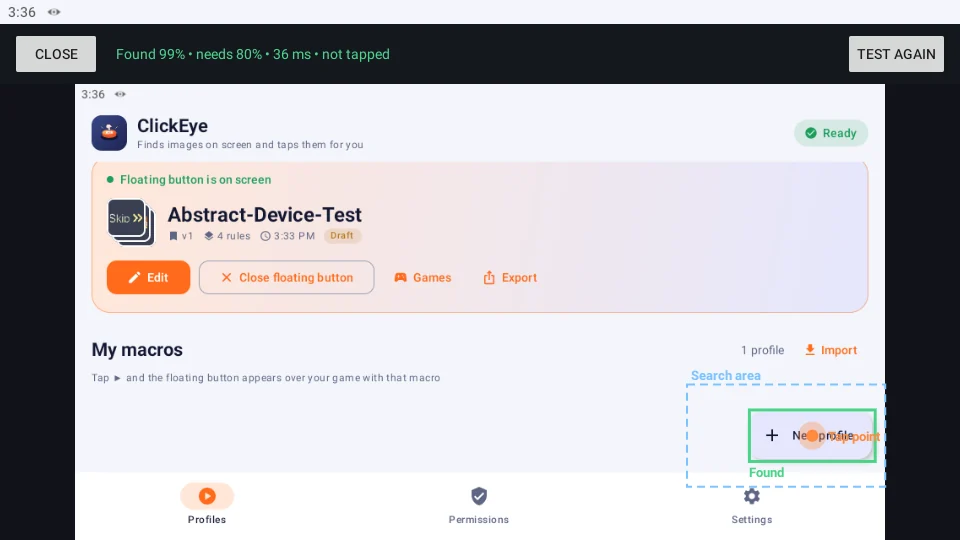
8

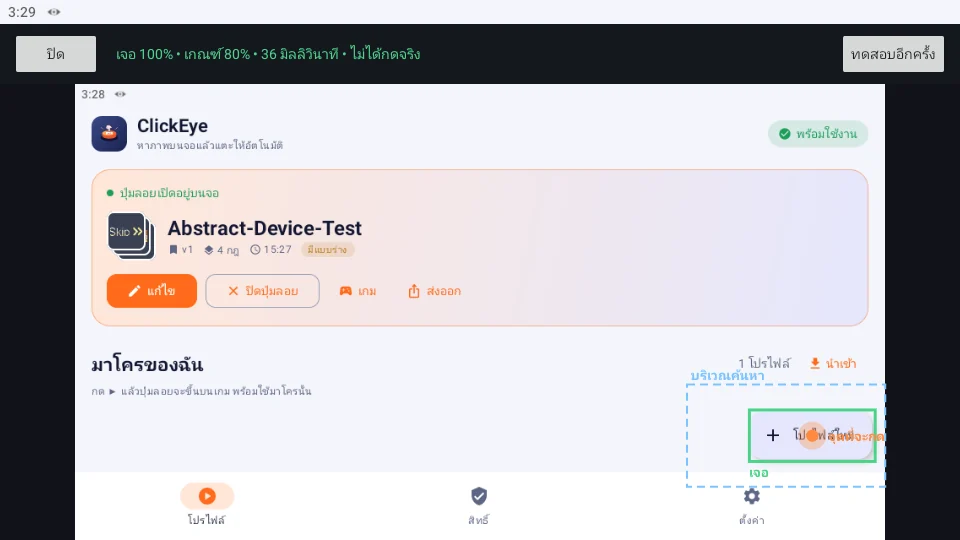
ทดสอบค้นหา (ไม่แตะ)Test search (no tap)

เช็กก่อนรันจริงว่าเจอไหม คะแนนเท่าไหร่ และจะแตะตรงไหนCheck it's found, the score, and where it would tap — before running.

  1. 1ผลการค้นหาResultคะแนน / เกณฑ์ / เวลาที่ใช้Score / threshold / time taken
  2. 2กรอบเขียว = เจอGreen box = foundจุดกลางคือจุดที่จะแตะIts centre is where it taps
  3. 3เส้นประ = บริเวณค้นหาDashed = search area
  4. 4ทดสอบอีกครั้งTest again
123
9

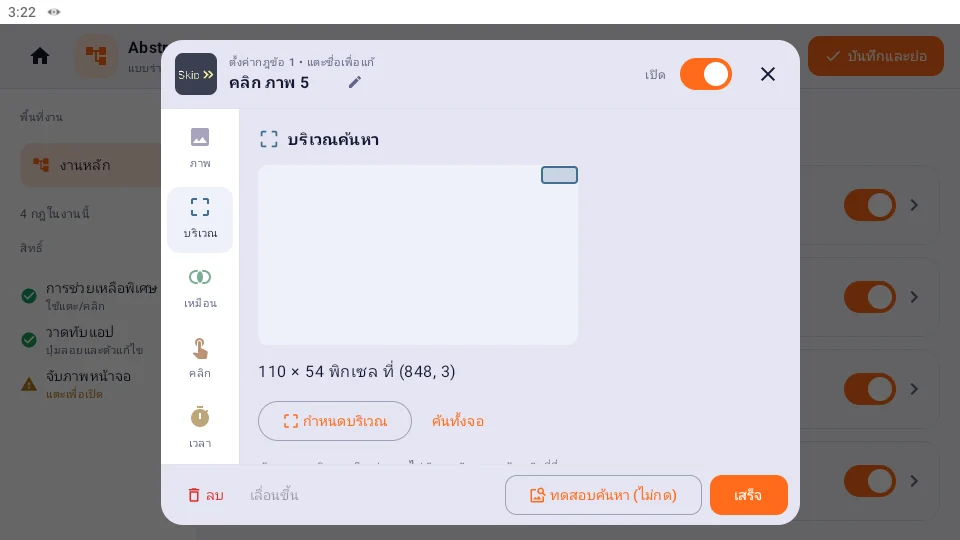
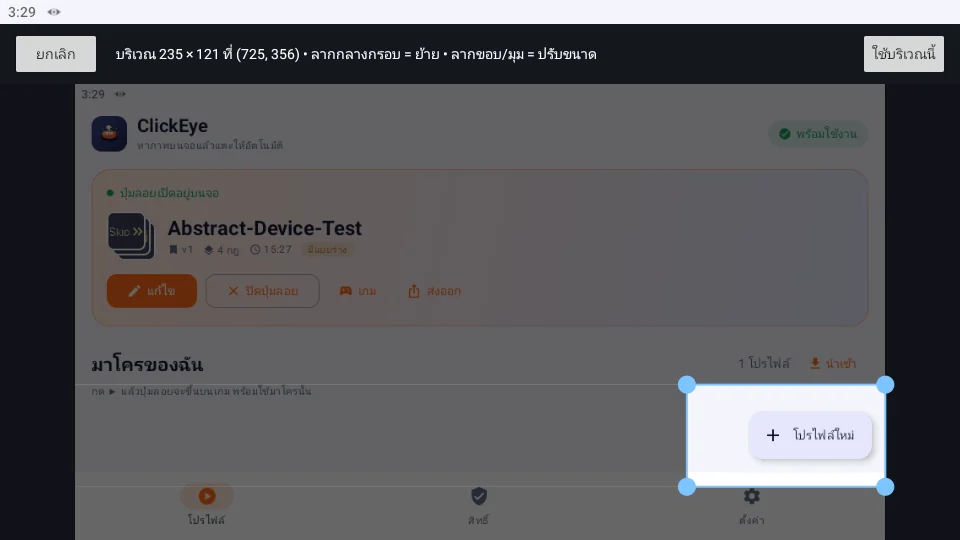
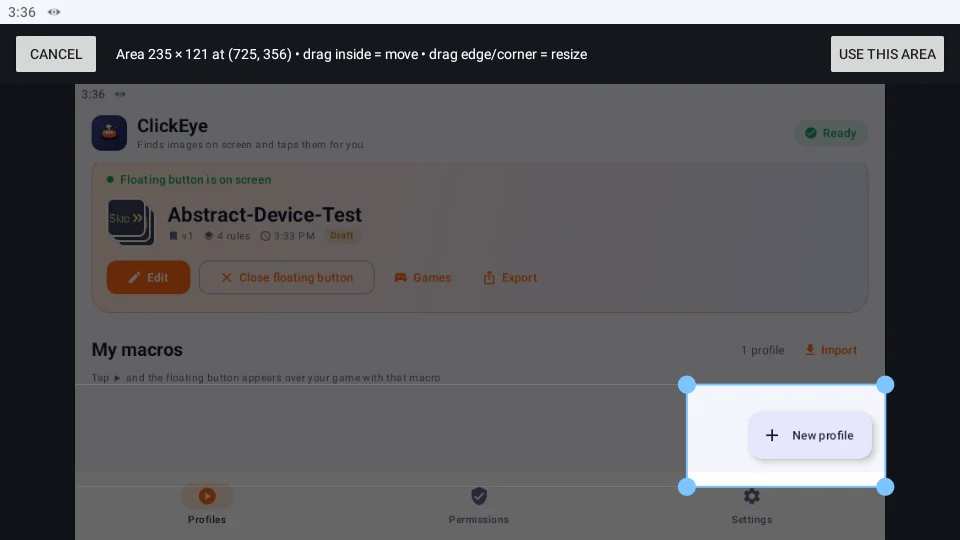
กำหนดบริเวณค้นหาSet the search area

ค้นเฉพาะส่วนที่ปุ่มจะขึ้น เร็วขึ้นและไม่ไปแตะภาพที่คล้ายกันที่อื่นSearch only where the button appears — faster, no look-alike taps.

  1. 1ลากกลางกรอบ = ย้ายDrag inside = move
  2. 2ลากมุม/ขอบ = ปรับขนาดDrag corner/edge = resize
  3. 3ใช้บริเวณนี้Use this area
12345
10

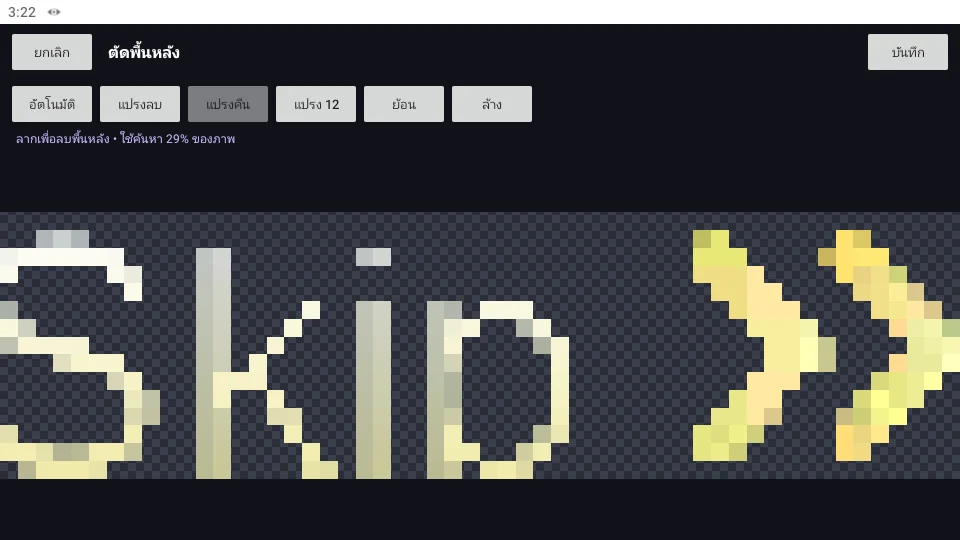
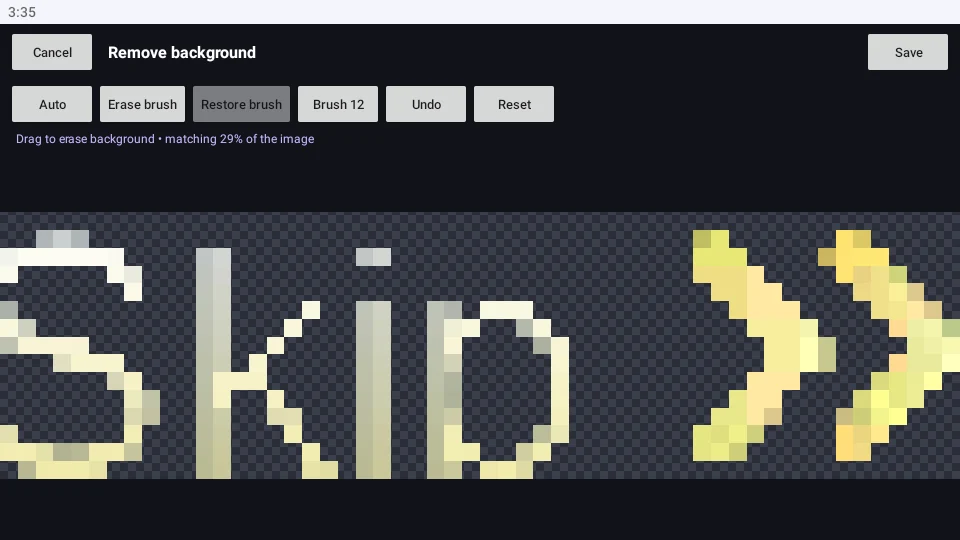
ตัดพื้นหลังRemove the background

ปุ่มอยู่บนพื้นที่ขยับหรือเปลี่ยนสี? ลบพื้นหลังออก เหลือแต่ตัวปุ่มButton on a moving or changing background? Erase it, keep only the button.

  1. 1อัตโนมัติAutoให้แอปเดาพื้นหลังให้Let the app guess the background
  2. 2แปรงลบ / คืนErase / restore brushระบายส่วนที่ไม่ใช่ปุ่มPaint away what isn't the button
  3. 3ขนาดแปรงBrush size
  4. 4% ที่ใช้ค้นหา% used for matching
  5. 5บันทึกSave
1234
11

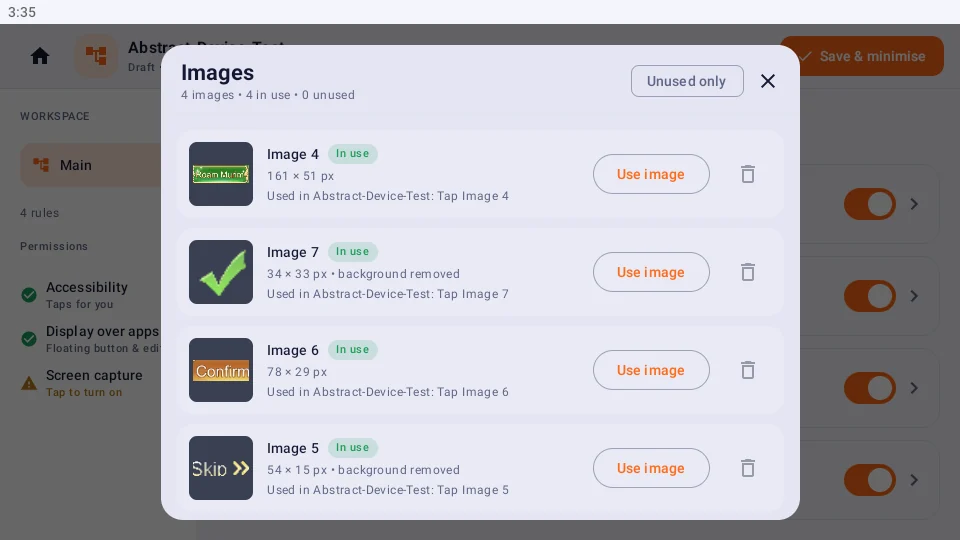
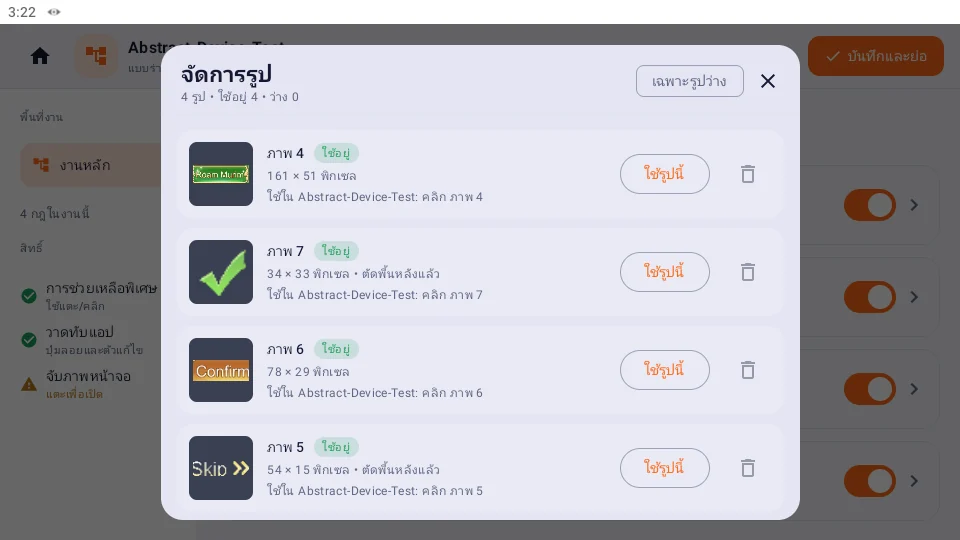
จัดการรูปManage images

รูปที่ครอปไว้ทั้งหมด ดูว่ารูปไหนใช้อยู่หรือว่าง ใช้ซ้ำหรือลบได้Every crop you saved — see which are in use, reuse or delete them.

  1. 1สถานะStatusใช้อยู่ / ว่างIn use / free
  2. 2ใช้รูปนี้Useสร้างกฎใหม่จากรูปเดิมNew rule from this image
  3. 3ลบDeleteลบได้เฉพาะรูปที่ว่างOnly free images
  4. 4เฉพาะรูปว่างFree only
123
12

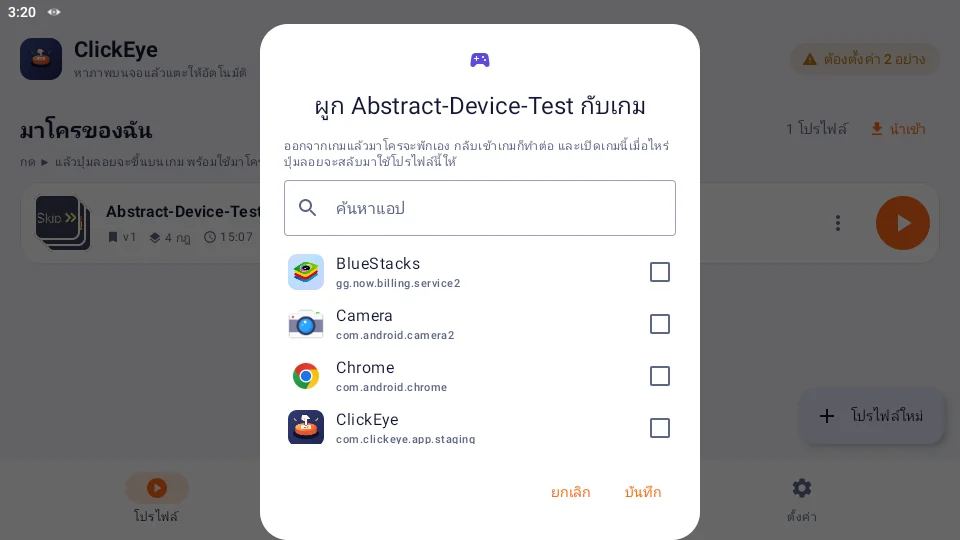
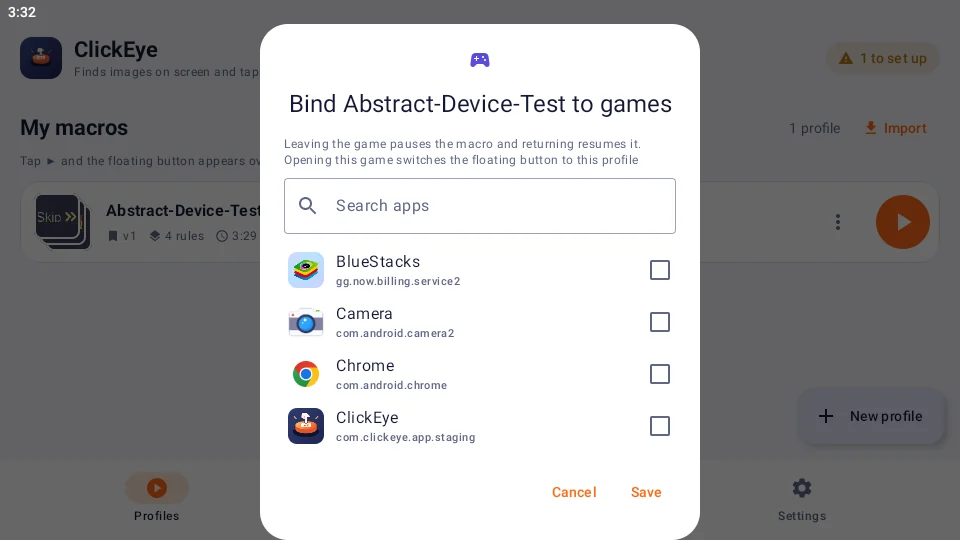
ผูกมาโครกับเกมBind a macro to games

⋮ → ผูกกับเกม… ออกจากเกมแล้วพักเอง กลับเข้าเกมทำต่อ เปิดเกมไหนสลับมาโครให้⋮ → Bind to game…: pauses when you leave, resumes when you return, switches macro per game.

  1. 1ค้นหาแอปSearch apps
  2. 2ติ๊กเกมTick gamesเลือกได้หลายเกมMore than one is fine
  3. 3บันทึกSave
12
13

ตั้งค่าแอปApp settings

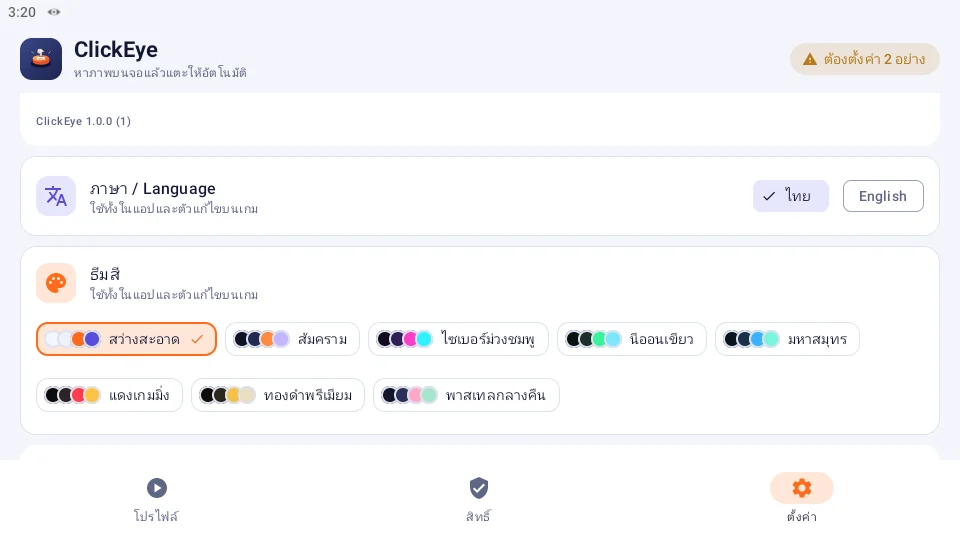
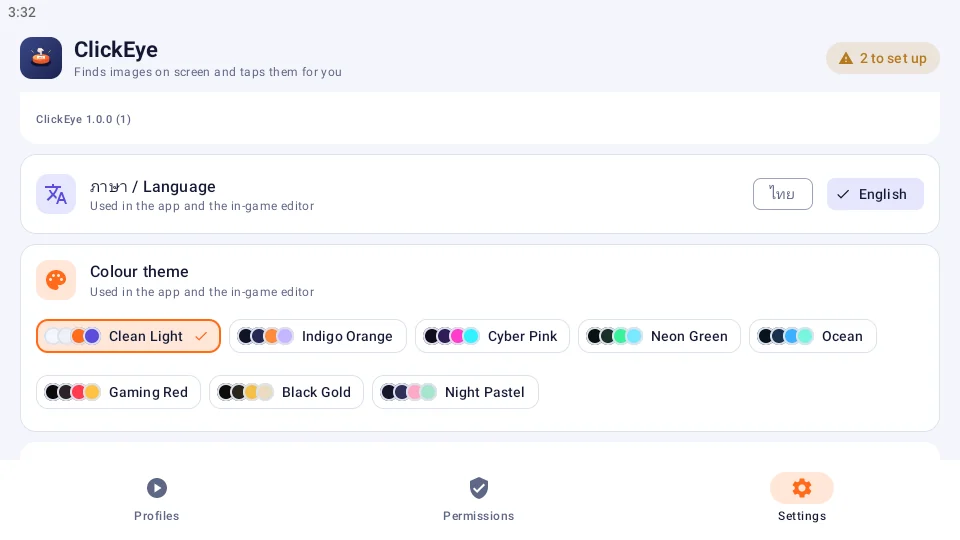
แท็บ ตั้งค่า: บัญชี แจ้งปัญหา/ขอฟีเจอร์ ข่าวสาร ภาษา ธีมสี และกรอบ RGBSettings tab: account, feedback, news, language, colour theme and RGB frame.

  1. 1ภาษาLanguageไทย หรือ อังกฤษ ทั้งแอปและปุ่มลอยThai or English, app and overlay
  2. 2ธีมสีColour theme8 แบบ ใช้ทั้งแอปและปุ่มลอย8 themes, app and overlay

แก้ปัญหาเร็ว ๆQuick fixes

  • ?เจอภาพแต่ไม่แตะFound but not tappingการช่วยเหลือพิเศษอาจถูกปิดหลังอัปเดตแอป — เปิดใหม่ในแท็บ สิทธิ์Accessibility may be switched off after an update — turn it on again in Permissions
  • ?คะแนนต่ำ หาไม่เจอLow scoreตัดพื้นหลัง ครอปใหม่ให้พอดี หรือลดเกณฑ์ลงใกล้คะแนนล่าสุดRemove the background, crop tighter, or lower the threshold near the latest score
  • ?หน้าจอดำ / มองไม่เห็นแอปBlack screenบางแอปบล็อกการจับภาพหน้าจอ ClickEye จะมองไม่เห็นแอปนั้นSome apps block screen capture; ClickEye can't see them
  • ?ปุ่มลอยหายFloating button missingหน้าตั้งค่าของ Android ซ่อนปุ่มลอยทุกแอปไว้ เป็นเรื่องปกติ กลับไปหน้าเกมแล้วจะขึ้นเองAndroid Settings hides all floating buttons — it comes back on your game
  • ?ยังติดอยู่?Still stuck?แจ้งปัญหาReport it